Running a mental health group practice means wearing a lot of hats, but stressing over where your marketing dollars are disappearing shouldn’t be one of them. We built the Practice Quick Budget® Free tool to give practice owners like you a practical, stress-free way to keep tabs on every dollar—from digital ads and directory listings to software tools. It’s an easy, interactive guide that tracks your category spends and real-time KPIs at a glance, so you can keep your growth on track with complete confidence and focus on supporting your team and your clients.
(A Quick Reference Guide)
Open the App in your browser.
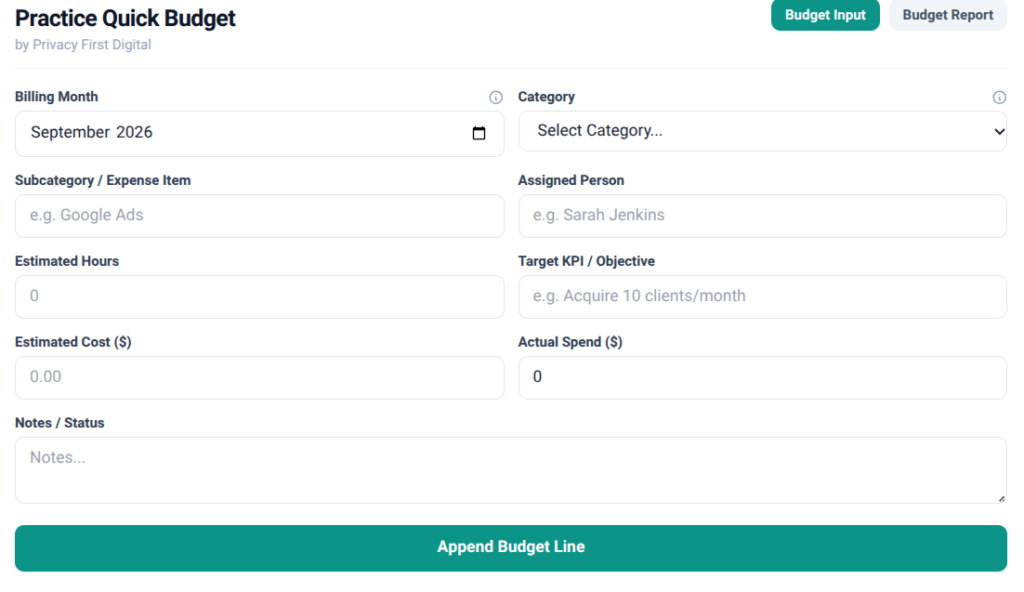
Select the Billing Month for the expense (e.g., 2026-09).
Choose the appropriate Category (e.g., Marketing & Advertising, Website & Digital Presence, Software & Analytics).
Enter the Subcategory / Expense Item name (e.g., Google Search Ads, Psychology Today Subscription).
Add the Assigned Person managing the item and any Estimated Hours.
Fill in the Target KPI / Objective, Estimated Cost ($), and Actual Spend ($).
Click Append Budget Line. A green confirmation banner will appear at the top when saved.
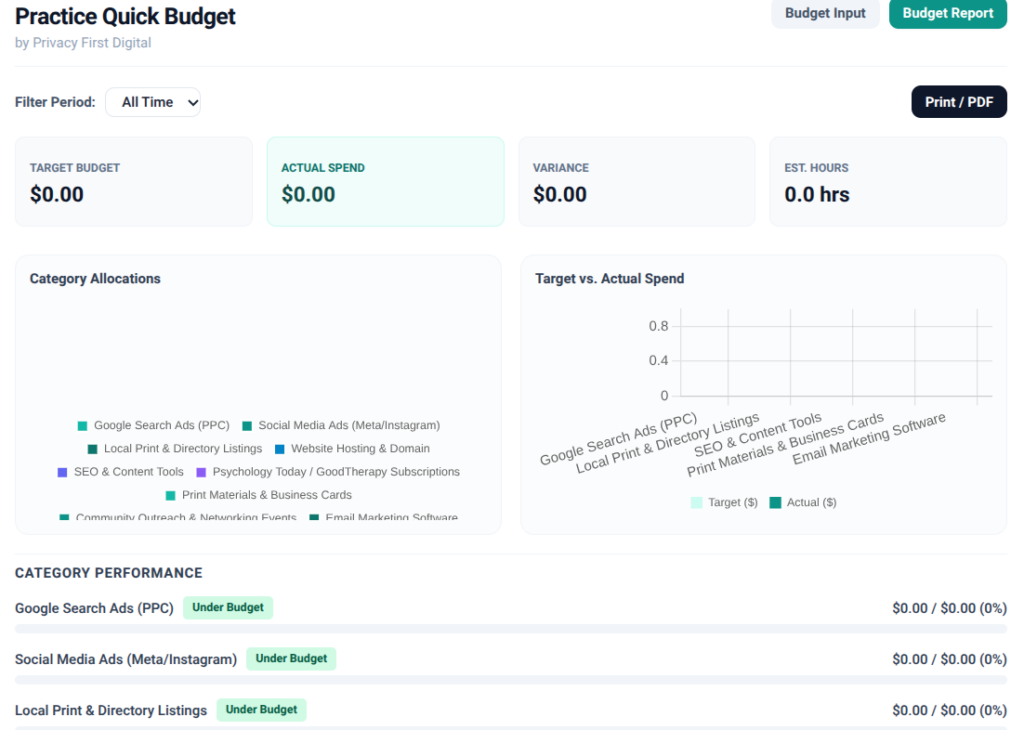
Click the Budget Report tab at the top right of the application.
Use the Filter Period dropdown to view data for a specific month or all-time totals.
Review total spend, remaining variance, category breakdown progress bars, and Chart.js analytics graphs.
Check the KPI Badges next to each category (Under Budget, At Limit, or Over Budget).
Switch to the Budget Report tab.
Scroll down to the Manage Entries table at the bottom.
Click the Edit button next to the row you wish to update.
The form will automatically pre-fill with the existing details, and a banner will indicate you are in Edit Mode.
Make your updates and click Update Budget Line to save the changes